
TP-LINK tpCamera
TP-LINK SYSTEMS INC.Libraries & Demo
4.1261.00 Reviews
- Version
- 3.2.22
- Installs
- 1.00M
- Age Rating
- Everyone
Screenshots
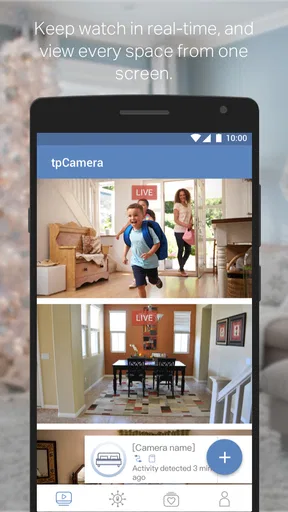
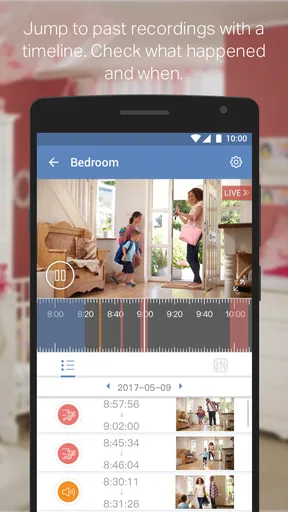
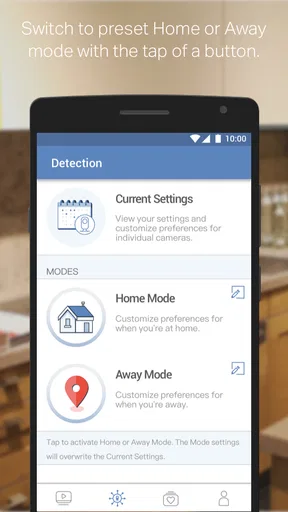
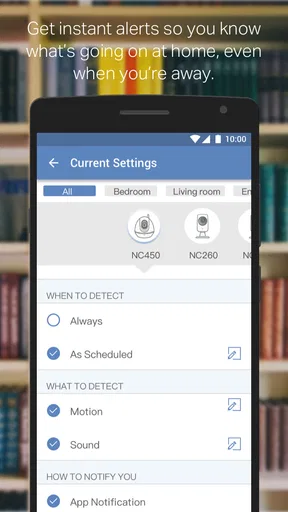
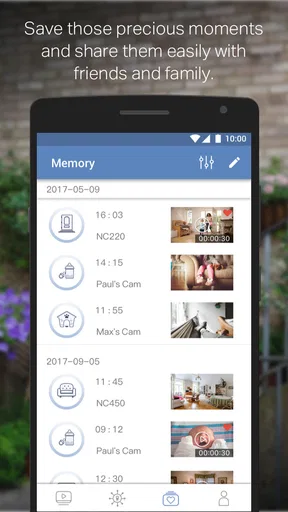
Our Review of TP-LINK tpCamera
 Analysis by Appyee
I approached TP-LINK tpCamera as a practical camera-viewing tool rather than a feature-heavy smart-home platform. Its purpose is straightforward: help me check compatible TP-LINK cameras from a phone when I am away from the room or property where the camera is installed. That narrow focus is also the app’s main appeal. I am not asked to learn a large home-automation system before reaching the live camera view.
The app sits in the Libraries & Demo section, is free to use, and comes from TP-LINK SYSTEMS INC. It has been available since November 25, 2014, and its current version is 3.2.19. With an Everyone content rating and support beginning at Android 7.0, it is aimed at a broad audience, although the real deciding factor is whether the camera hardware and account setup fit the app.
What using tpCamera feels like when the network is doing the work
The first thing I noticed is how strongly the experience depends on connectivity. This is not an app I open to browse stored phone media or manage a camera entirely in isolation. I open it because I want a current view, and that means the phone, the camera, and the service connecting them all need to cooperate. When that chain is healthy, the app’s simple design works in its favor: I can concentrate on seeing what is happening instead of navigating through unrelated tools.
That network dependence changes how I judge the app. A delayed image or a long loading moment is not automatically a sign that the interface is poor. The camera’s own connection, the phone’s connection, and the route between them can all affect the result. Still, from a user’s point of view, the distinction matters less than the outcome. If I am checking whether a child has arrived home or whether a delivery is still outside, I need a view that appears predictably.
In a normal home setup, I would first make sure the camera is already configured and reachable before relying on the app for urgent checks. I would also test it from the places where I expect to use it, not only while standing next to the camera. A nearby phone can create false confidence because the local network may be stronger than the mobile connection I use later. Testing the complete away-from-home routine is more useful than testing only the initial setup.
The app’s focused purpose makes it easier to understand than a general smart-home alternative. Larger platforms may combine cameras with lights, locks, alarms, voice assistants, and automation rules. That broader approach can be valuable, but it also creates more menus and more decisions. tpCamera makes more sense to me when the main task is checking a TP-LINK camera rather than building an entire connected home.
A realistic everyday check
Imagine leaving home in a hurry and remembering that a window near the entrance may have been left open. I would use the app to check the relevant camera instead of turning around immediately. The useful part is not a long list of controls; it is the ability to make that quick decision from a phone. If the image loads promptly, the app has done exactly what I needed.
There is a practical trade-off, though. A camera view can answer “what can I see right now?” without answering every question about what happened earlier or what will happen next. I would not treat a quick visual check as a replacement for a complete security system. The app is best for awareness and confirmation, not for assuming that one camera view covers every angle or every event.
Using it in changing mobile conditions
Mobile use is where the app’s value becomes clearest, but also where its limitations are easiest to notice. At home, I can usually troubleshoot the camera and phone together. Outside, I have less control over the connection. A weak signal, crowded public network, or momentary handoff between networks can interrupt the experience at exactly the wrong time.
For that reason, I would avoid opening the app only when a situation is already urgent. If I am on the way to work and want to check the house, I would allow a little time for the connection to establish rather than waiting until I am standing at a train platform with a poor signal. This is a small habit, but it makes a network-dependent camera app feel much less stressful.
The phone screen also changes the way I use the camera. A live view is useful for a quick glance, but it is not the same as watching a large monitor continuously. I find the app more suitable for short checks than for extended observation. That makes it a sensible companion for occasional reassurance, while people who need constant supervision may prefer a dedicated monitoring setup with a larger display and more specialized controls.
Another useful habit is to give the camera a clear role. If several cameras are installed, I would name or organize them in a way that matches the physical spaces they cover, if the available setup allows it. The point is to reduce hesitation when I am away. “Front entrance” is more useful in a rushed moment than trying to remember which device corresponds to a particular room.
What happens when a connection fails
No camera-viewing app should be judged only by its best moments. The important question is what I do when the image does not appear. With tpCamera, I would start with the simplest checks: confirm that the phone is connected, try again after a short pause, and determine whether the problem affects one camera or the whole setup. That distinction helps separate a local camera issue from a broader connection problem.
If the camera works while I am on the same home network but not when I am away, I would focus on the remote connection path rather than immediately reinstalling the app. If it fails everywhere, I would inspect the camera’s power and network status before changing account settings. These steps sound basic, but they prevent a common mistake: repeatedly changing the app when the real problem is the camera or router.
Recovery is also easier when I keep expectations realistic. A network interruption may require another attempt, and a camera that has lost power cannot be repaired from a viewing app alone. I appreciate simple tools more when they make the normal path clear, but simplicity does not remove the need for physical access during troubleshooting. If I am already away, my options may be limited to retrying later or asking someone at the location to check the equipment.
This is one area where a broader security platform may be a better fit for some households. A more advanced service might offer several alert channels, richer event history, or stronger diagnostic guidance. I would choose that route if failure notifications and remote recovery were central requirements. I would choose tpCamera when I mainly want direct access to a compatible TP-LINK camera and am comfortable handling occasional connection problems myself.
Being careful with mobile data and attention
A live camera view naturally uses more network activity than a static settings screen, so I would avoid leaving it open unnecessarily when using mobile data. My own pattern would be to open the app, confirm what I need to know, and close it rather than treating the phone as a permanent surveillance monitor. This is useful not only for data-conscious users but also for battery-conscious ones.
The same principle applies to attention. A camera feed can encourage repeated checking, especially when I am worried about a pet, a child, or an empty property. I find the app most helpful when I decide in advance what question I am trying to answer. For example: “Did someone enter the hallway?” or “Is the package still visible?” A defined question keeps a quick check from turning into constant screen watching.
Privacy deserves practical attention too. I would position the camera so it covers the intended area without unnecessarily viewing neighbors, public spaces, or private parts of the home. The app provides access to the camera, but responsible placement remains the owner’s job. I would also be cautious about checking a sensitive indoor view over public networks and would keep my account access limited to people I genuinely trust.
These habits reveal an important trade-off: convenience depends on access, while responsible use depends on restraint. The fact that the app is free removes a purchase barrier, but it does not remove the costs of maintaining a connected camera, including network availability, power, and the user’s own time. I would evaluate the whole setup rather than treating the app as a complete security solution by itself.
Who will get the most from this app?
I think tpCamera is a good match for someone who already owns compatible TP-LINK camera equipment and wants a direct mobile way to view it. It can also suit a household member who does not want to learn a complicated collection of smart-home features. The interface’s focused purpose is reassuring: open the camera tool, find the relevant view, and make a decision.
It is especially practical for occasional checks. I can imagine using it while commuting, visiting relatives, waiting for a contractor, or checking a room before returning home. It is also useful for people who want to separate camera access from a larger collection of unrelated home controls. In that situation, a smaller app can feel clearer than an all-in-one dashboard.
I would be more cautious about recommending it to someone choosing a camera system from scratch. The app should not be the only reason to buy hardware. Compatibility, camera placement, network reliability, account setup, and the quality of the camera itself all matter more than the presence of a simple viewing screen. If someone needs advanced automation, detailed event investigation, or a full multi-device security ecosystem, a more comprehensive alternative may be the better starting point.
I would also hesitate for users who expect the app to solve every remote problem. A phone can display a camera view, but it cannot restore power to a disconnected camera or guarantee a stable path through every mobile network. People who need dependable professional monitoring should compare dedicated services rather than relying on a basic camera-access app alone.
How it compares with familiar alternatives
Compared with a general smart-home app, tpCamera feels narrower and potentially easier to approach. That is an advantage if my goal is simply viewing a TP-LINK camera. The disadvantage is that I may need another tool for devices outside that camera family, which can split control across multiple apps. The choice comes down to whether I value a focused camera experience or one central place for an entire home.
Compared with a phone manufacturer’s camera viewer or a cloud security platform, the deciding factor is usually ecosystem fit. A broader service may offer more polished cross-brand management, richer history, or additional notifications, while tpCamera makes the most sense around TP-LINK equipment. I would not call one universally better. I would choose based on the camera already installed and the level of remote management I actually need.
Compared with viewing a camera through a browser or a desktop arrangement, the mobile app is more convenient for spontaneous checks. I do not need to be seated at a computer to see what is happening. On the other hand, a larger screen may be more comfortable for prolonged observation or comparing several views. This app’s strength is mobility, not replacing every possible viewing method.
The public reception suggests that many people find the basic concept useful: the app holds a 4.1 average from around 21 thousand ratings, with more than a million installs. I see that as evidence of meaningful adoption rather than a guarantee that every setup will behave identically. Camera models, network conditions, phone settings, and user expectations can all change the experience.
My practical setup and usage advice
I would begin by installing the current release, version 3.2.19, on a supported Android device and checking the camera while physically near it. After that, I would repeat the test from a different network and from the locations where remote viewing matters. This two-stage check exposes connectivity issues before they become part of an urgent situation.
Next, I would decide which checks are genuinely useful and avoid leaving the feed open by habit. For a family home, that might mean checking the entrance after a child arrives. For a small business, it might mean confirming that a room is empty before locking up. For a pet owner, it might mean a brief look during a long day away. Each scenario benefits from a clear purpose and a camera positioned for that purpose.
If another person needs access, I would keep the arrangement as limited and understandable as possible. I would explain which camera to open and what to do if the view fails, rather than assuming that everyone will troubleshoot it intuitively. A simple shared routine is often more useful than giving people access without guidance.
I would also keep a backup plan for important situations. If seeing the camera is essential for a business decision or a vulnerable person’s safety, I would not make the app the only source of information. A phone call, a nearby contact, or another appropriate safety measure may be necessary when connectivity is uncertain. That is not a criticism unique to tpCamera; it is a sensible boundary for any remote camera viewer.
My connectivity verdict
After using it as a focused camera companion, I see TP-LINK tpCamera as a sensible choice for the right hardware owner, not as a universal answer for every surveillance need. Its free access, Everyone rating, broad Android compatibility from version 7.0 onward, and focused purpose make it approachable. The developer, TP-LINK SYSTEMS INC., has kept the concept easy to understand: use a phone to reach a compatible camera when you are not standing beside it.
Its strongest quality is convenience during ordinary, short checks. Its biggest weakness is the same thing that makes remote viewing possible: the experience is tied to connectivity. When the phone, camera, and network cooperate, the app can save a trip and provide useful reassurance. When one part fails, recovery may require patience or someone physically near the camera.
I would recommend it to TP-LINK camera owners who want straightforward mobile viewing and are willing to test their remote setup properly. I would skip it as a primary choice if I needed a complete security ecosystem, extensive automation, professional monitoring, or dependable operation in places with unreliable connectivity. For quick, network-dependent camera checks, it is practical; for a complete security strategy, it is only one piece of the arrangement.
Privacy and Permissions
See what permissions an app requests and how it handles your data.
- Location
- approximate location (network-based), precise location (GPS and network-based)
- Photos/Media/Files
- read the contents of your USB storage, modify or delete the contents of your USB storage
- Storage
- read the contents of your USB storage, modify or delete the contents of your USB storage
- Microphone
- record audio
- Wi-Fi connection information
- view Wi-Fi connections
- Other
- view network connections, allow Wi-Fi Multicast reception, full network access, prevent device from sleeping
Verdict
Strengths of TP-LINK tpCamera
- Simple setup with guided camera pairing
- Live video access from anywhere with an internet connection
- Motion alerts help monitor activity around the camera
- Supports multiple cameras within one account
- Works with several TP-Link camera models
Limitations of TP-LINK tpCamera
- Cloud features may require a subscription or added fees
- Video quality depends heavily on your network connection
- Older camera models may have limited app support
- Privacy depends on securing your TP-Link account
- Some advanced settings are unavailable in the mobile app
Other Releases by TP-LINK SYSTEMS INC.
View All
TP-Link Tapo
Lifestyle4.6

Kasa Smart
Lifestyle4.7
Similar Picks in This Category
View All
PGT: GFX, Launcher & Optimizer
Trilokia Inc.4.5

AusweisApp Bund
Governikus Service GmbH3.7

Cardboard
Google LLC3.2

Gamers GLTool with Game Tuner
Trilokia Inc.4.5

Multi Web Chat - Read Secretly
World Scan & Cleaner3.8

App Cloner Premium & Add-ons
App Listo1.9
Frequently Asked Questions
What is TP-LINK tpCamera used for?
TP-LINK tpCamera is a mobile application designed to help you view and manage compatible TP-Link cloud cameras from an Android or iOS device. After connecting a supported camera, you can usually watch live video remotely, check different camera locations, and receive access to basic monitoring features. It is mainly intended for home, office, baby-room, pet, or small-business surveillance rather than advanced professional security systems.
Which cameras and devices are compatible with TP-LINK tpCamera?
Compatibility depends on the specific TP-Link camera model and the version of the application available for your device. Before downloading, check the camera’s product documentation and the app-store listing to confirm support for your Android or iPhone. You will also need a compatible phone, a working TP-Link camera, and a stable wireless network. Older camera models or outdated operating systems may not support every current feature.
Does TP-LINK tpCamera allow remote viewing when I am away from home?
The application is intended to provide remote access to supported TP-Link cameras through an internet connection, allowing you to check live footage while away from the camera’s location. Performance depends on the upload speed of the camera’s network, the connection used by your phone, and TP-Link’s cloud service availability. Video may load slowly, reduce quality, or disconnect when either network is weak or unstable.
Is TP-LINK tpCamera free to download and use?
TP-LINK tpCamera has generally been distributed as a free mobile application, but downloading the app does not necessarily mean that every related service is free in all circumstances. Camera hardware must be purchased separately, and availability of cloud features, storage options, or account services can vary by model, region, and product generation. Review the current store description and TP-Link terms before relying on a particular feature.
Is TP-LINK tpCamera secure and what privacy settings should I check?
Because tpCamera can provide access to live images from inside your home or workplace, account and network security are especially important. Use a strong, unique password for your TP-Link account, keep the camera firmware and mobile application updated, and avoid sharing login details. Check camera-sharing permissions carefully and disable access for people who no longer need it. Also review privacy policies and cloud-storage settings before enabling recording or remote access.
